
Arc Title
Blade Reveal
Blended Hover
Blur Reading
Blur Reveal
Counter
Decode Hover
Decode Reveal
Dynamic Copyright
Fluid Gradient
Highlight
Highlight Hover
Letter Launcher
Link Preview
Looping Lines
Looping Lines v2
Looping Lines v3
Mask Hover
Proximity Hover
Read More
Scribble Reveal
Scroll Reading
Swap Hover
Text Shimmer
Twist Reveal
Typed
Underline Hover
Unfold Hover
3D Swap Hover
Anyside Button
Arrow Button
Arrow Button v2
Arrow Button v3
Arrow Button v4
Arrow Button v5
Arrow Button v6
Arrow Button v7
Arrow Button v8
Arrow Button v9new
Blurry Button
Bubbles Button
Crystal Button
Dot Button
Dot Button v2
Dot Button v3
FlipFlop Button
FlipFlop Button v2
FlipFlop Button v3
Glowing Button
Marquee Button
Marquee Button v2
Mask Button
Modal Button
Nudge Button
Pixels Button
Prism Button
Prism Button v2
Rainbow Button
Reel Button
Ripple Button
Ripple Button v2
Ripple Button v3
Ripple Button v4
Ripple Button v5
Ripple Button v6
Ripple Button v7
Shiny Button
Squeezy Radius Button
Strip Button
Stripes Button
Audio Player
Back to Top
Chartnew
Click and Copy
Decode Card
Distorsion Tabs
Expanders
Flipbox
Glitchy
Horizontal Marquee
Interactive Divider
Inverted Corner
Looping Tabs
Lottie
Motion Divider
Observer
Orbitnew
Pixels Shimmer Card
Progress Bar
Progress Bar v2
QR Code
Scrollbar
Sharer
Smooth Scroll
Spinner
Stacking Cards
Sticky Footer
Syncnew
Tabs
Tippy
Toast
Toolteam
Vertical Marquee
Workflownew

Distorsion Tabs
Fast
Easy
Nice
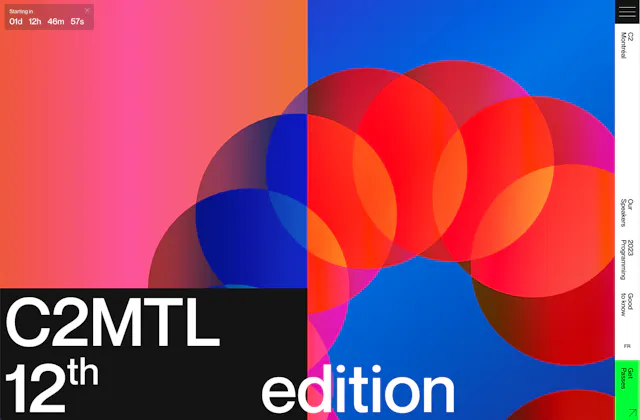
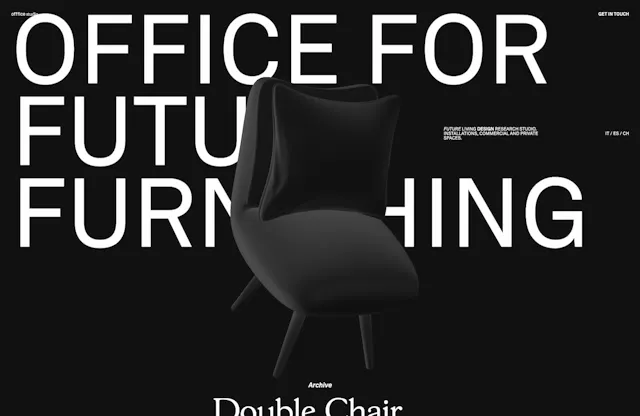
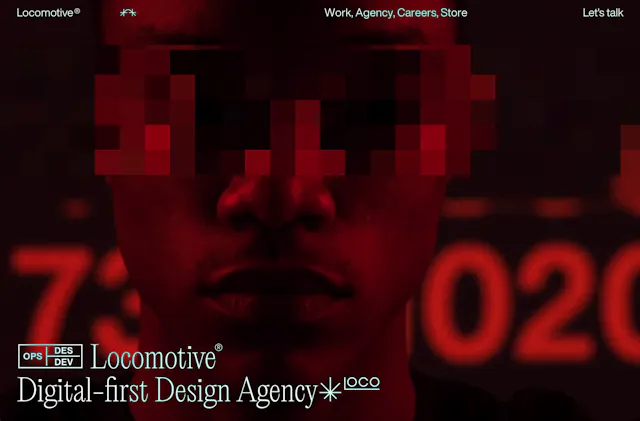
How it works
Distorsion Tabs is a nestable widget made of a Nav element that contains the Nav Items (you can put any content here) and a Tabs element that contains the Tab Items (you can put the content you need at each Tab). The number of Nav Items should be equal to the Tab Items. The first Nav Item will trigger the first Tab, the second Nav Item will trigger the second Tab and so on.
In case you want to put the Distorsion Tabs vertically, so that the Nav is above the Tabs, you can just change the flex direction to be a column at the Layout Group at the Style Tab.
Content tab
Settings group
Active tab: the Active Tab by default when the page loads.
Event: When to trigger the tabs at Nav Items. Hover or Click.
Tabs Elements Dimensions group
Each Tab has an absolute position required for the distorsion animation to work properly. So you should give defined dimensions to Tabs using Width and Height at this section.
Distorsion Animation group
Duration
GSAP easing: you can choose from a wide variety of easings. Learn more about GSAP easings here.
Nav Items Fade Animation group
Opacity: the opacity value when the Nav Items are inactive.
Opacity Duration
Opacity CSS easing: you can set any custom CSS easing of your own. Learn more about CSS easings here.